
LXI Device Discovery Problems
For further information on Ethernet issues, Wikipedia is a good starting point:
DHCP - http://en.wikipedia.org/wiki/Dynamic_Host_Configuration_Protocol
IP Address - http://en.wikipedia.org/wiki/IP_address
The LXI Consortium also has a Discovery Tool, created by Pickering with assistance from reviews by other vendors. This tool requires no proprietary software to be installed.
Download the LXI Discovery Tool here
A set of user guides for setting up LXI Devices and Ethernet controllers can also be found on the LXI Consortium website here
Most discovery tools will fail to find LXI Devices if there are network setting inconsistencies between the host PC and the target LXI device.
Typical Issues
On traditional bus systems like GPIB or PXI, devices are connected via a simple wired interconnection, and discovery is rarely a problem; however, with an Ethernet-connected system, additional factors can cause devices that appear connected to have no data path between them. This can be the case even with a simple one-to-one connection between two devices, such as your PC and an LXI device.
For two LXI Devices to communicate, not only must there be a physical (or wireless) connection between them, but their software stack settings must be compatible. This is achieved by ensuring there are no obstructions in the path, such as a firewall, and that their address settings are within the same range.
For example, a common problem occurs when an LXI Device is connected via a crossover cable to a laptop PC that also has a wireless network connection. In many cases, the PC obtains an IP address from the DHCP server on the wireless network, but the LXI device, lacking access to the DHCP server, falls back to a different method for determining an IP address. Now the two devices will probably have IP addresses in different ranges, and it is not possible to establish communication between them, so discovery fails.
Another common situation is when the LXI Device is configured with a fixed IP address, but the computer is receiving a DHCP address.
The Solution
The solution is to modify the network configuration on one or both devices to ensure the IP address settings are compatible.
If the LXI Device IP address is known, configure the computer to have a valid address on the same subnet as the LXI Device. If the LXI device IP address isn't known, it may be necessary to reset the LXI device to factory default conditions - see section below: Resetting an LXI device to factory default settings
To effect a solution, some understanding of the network will be required.
Let's consider the case of a computer and an LXI Device connected via a crossover network cable. Assuming the computer does not have a DHCP server running, the LXI Device will have obtained an Auto-IP address in the 169.254.0.0 to 196.254.255.255 range. The computer must be set to the same range for discovery to work. For example, on a Windows-based PC, open the Control Panel, select Network Connections, right-click on the entry for the wired connection and select Properties. Then select the Internet Protocol entry and click on Properties.
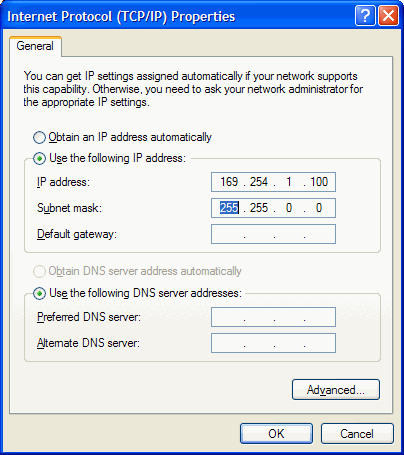
Set the PC to use a specific IP address and configure that address in the LXI device's Auto-IP range. Make sure the Subnet mask is set to 255.255.0.0.
Pickering IP Address Setting
Pickering LXI devices have 3 modes for IP address configuration: DHCP, Auto-IP, or fixed IP address.
The default setting of a Pickering LXI Device is to obtain its IP address from a network DHCP server. In this case, the IP address will be in the range determined by that server, and in most cases, all network-based equipment connected to that DHCP server will have addresses in the same range. If the device fails to find a DHCP server, it will revert to obtaining its address from the 'Auto-IP' range. In Auto-IP mode, the LXI device will select an address, check whether a device is already at that address, and set it if it's free. If there is already a device at that address, it will select a different address and retry until a free one is found.
Typical DHCP address ranges are:
192.168.0.0 to 192.168.255.255 (Class C)
172.16.0.0 to 172.16.255.255 (Class B)
10.0.0.0 to 10.255.255.255 (Class A)
Most networks are configured to provide addresses in one of these ranges; however, you should consult your network administrator. Often, sections of a network are managed by switches, which divide the network into subnets to better manage network traffic. In such a system, discovery may be blocked by these switches so that even if the device has the same initial fields.
The Pickering LXI devices using Auto-IP will obtain an address in the range:
169.254.0.0 to 169.254.255.255
If the device has been set

The "Find LXI Cards" software is looking for an LXI device with a subnet address of 255.255.0.0, but it cannot access this address when the computer is connected to a typical wireless LAN, where the subnet address is 255.255.255.0. The workaround is to temporarily disable the wireless interface, allowing Find LXI Cards to discover the hardwired Ethernet-connected LXI Device, and then re-enable your wireless connection.

Additionally, make certain that you are logged onto the system with Administrator rights.
Resetting an LXI device to factory default settings
On the rear of the LXI Device, there is a recessed button; this is the reset button. A short press on this button performs a simple reset of the device, equivalent to cycling the power. To reset a device to factory defaults, press and hold the button for 10 seconds. After release, the LXI device will restart and, after a few seconds, will be ready for use. When ready, the front panel LED indicator for LAN should show green.
After such a reset, the LXI device will be configured to obtain its IP address from a DHCP server.

