Using Pickering drivers in ATEasy
ATEasy provides a number of ways to import drivers, probably the easiest is to import a LabView library.
Importing the Pickering VISA driver pipx40
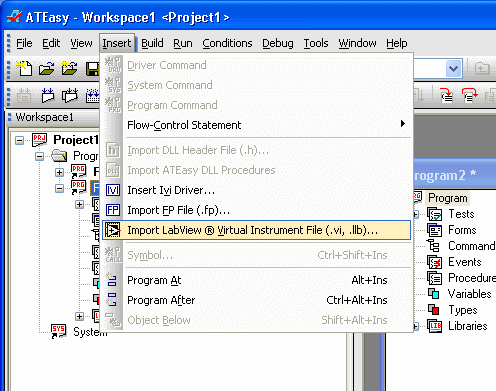
From the ATEasy program, select Insert and Import LabView Virtual Instrument File.
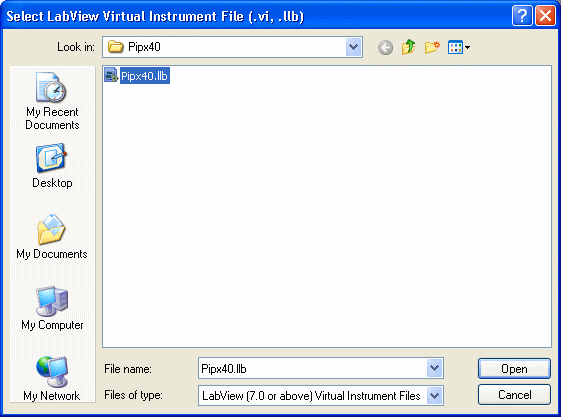
Navigate to the pipx40.llb file and select. The file will be located in the LabView installation folder, instr.lib, pipx40 folder.
ATEeasy will then display a list of the vi's contained in the library

Click on Import to add the functions to your ATEasy program, they will appear under the Procedures node of the program.
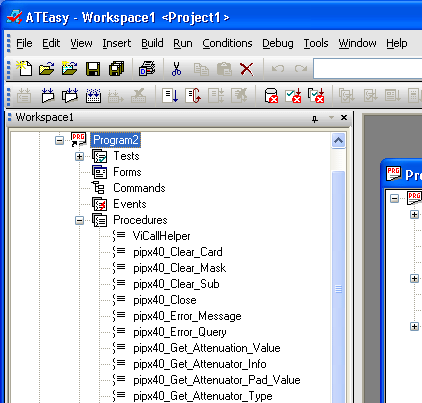
For details of the purpose and use of these functions refer to the documentation for Pipx40 which may be found in the Pipx40 installation folder.
Importing the PILPXI Direct IO Driver
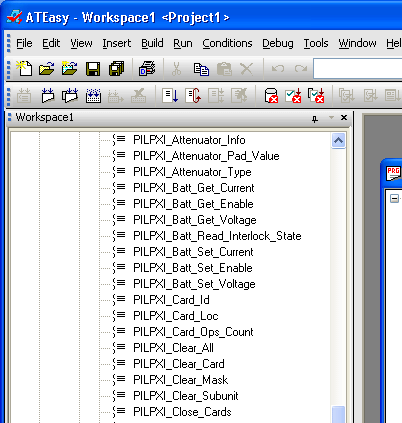
The procedure is similar to the above procedure for Pipx40 but selecting the pilpxi.llb. After insertion the PILPXI functions will appear in the Procedures node of your program.